CSS Theory #2: Inheritance and the Universal Selector

An inherited property is very easily overwritten by any rule, which has a value for that same property. So, inherited properties are the ones who have the lowest priority.

This is really elements inheriting values from one another and is mostly related to text: like color, font-size, font-family, font-style, font-weight, line-height, letter-spacing, text-align, text-transform, text-shadow, list-style, etc. An element, like border does not get inherited, by each heading, paragraph, image, etc.

The universal selector simply selects every single element on the page. It is useful if we want a certain property applied to all units, but which does not get inherited. It has the lowest level to be selected.

Like so:

* {
  border-top: 10px solid #1098ad;
}

(That will put a border on top of every single paragraph, header, body, list, footer, header, image, strong, italic, etc.)

Posted in Web Developer Course | Tagged , , , , | Leave a comment

CSS Theory #1: Conflicts between Selectors

When there are multiple declarations for the same element then:

1. Declarations marked “! important” are used first.

It should only be used as a last resort, to fix code. It is more of a hack, and should not be used normally. An example in CSS:

p {
    color: green !important;
}

2. Inline style (style attribute in HTML code).

You should not style in HTML, unless it is really, really small and in the <head> section.

*****************************

When all of your code is in the style.css section then:

1. ID (#) selector is given priority.

  • Multiple ID’s → then last id in the code will work.

2. Class (.) or pseudo-class (:) selector is next.

  • Multiple classes’ → then last class in the code will work.

3. Element selector (p, div, li, etc.) is next.

  • Multiple elements → then last selector in the code will work.

4. Universal selector (*) has the lowest priority when it is the selected style.

*****************************

To add multiple classes to the same selector, you simply add a space between the names. Like so:

<p class=”copyright text”>Copyright &copy; 2022 by Ann.</p>

Posted in Web Developer Course | Tagged , , , , | Leave a comment

Using Dev Tools

Three ways to open the developer tools:

  1. Right click inside an online page. Then click “Inspect” or “Inspect Element:”.
  2. Hold Ctrl and Shift together and press “I”.
  3. On Firefox and Brave Web Browser, click the hamburger icon on the upper right corner. Then click “More tools”. Then click “Web Developer Tools”.

Click on a header, or paragraph, etc. that you want to inspect OR right click on it and click “Inspect” and it will go directly to the line in your HTML code that you want to inspect or change.

  • Under the “Inspector” tab on the left side you can see it’s HTML code.
  • Under the “Filter Styles” tab in the middle, you can see it’s CSS style codes.
    • You can click on the :hov tab to toggle on and off to inspect and try out what happens when you ✔️ the hover, active, etc. anchor options.

Posted in Web Developer Course | Tagged , , , , | Leave a comment

Styling Hyperlinks with Pseudo-classes

a:link – will target all of the anchors that have an href attribute.

a:visited – usually will use the same color as on the link pseudo class. Unlike Google who changes from blue (un-clicked) to purple (clicked) link.

a:hover – when your computer mouse hovers over the link, it will be styled differently.

a:active – when you actually click on the link, the style can be changed to a different background-color or font-style, for example.

text-decoration: none; (removes the underline under hyerlinks)

text-decoration: underline dotted orangered; (the underline is defined)

a:link and a:visited are very similar, so usually they are grouped together.

Link, visited, hover, and active are ALWAYS defined in this exact order.

Posted in Web Developer Course | Tagged , , | Leave a comment

Pseudo-classes

Instead of using a class or an id to change something, you can also use a pseudo-class.

In CSS you write the element, then a colon, then what you want to change. Lists are really good to use as pseudo-classes because all of the child elements are the same. Like so:

li:first-child {
font-weight: bold;
}
This will change all of the 1st lines in all the lists to be bold.
li:last-child {
font-style: italic;
}
This will change all of the last lines in all lists to be italic.
li:nth-child(3) {
color: red;
}
This will change every 3rd item on all lists text red.
You can also change the “3” to any number you want.
It does not seem to change the color of <a href> text colors.
li:nth-child(odd) {
background-color: gray;
}
And also you can change it to (odd) or (even), to effect all of the odd or even texts.
Great to use to style tables with alternating background colors.

Posted in Web Developer Course | Tagged , , | Leave a comment

Working with Colors

RGB Model

  • RGB / RGBA Notation
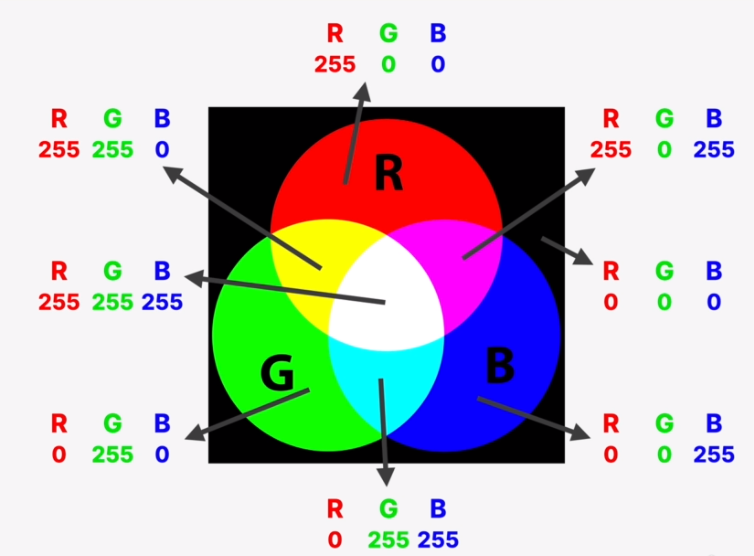
    • Every color can be represented by a combination of RED, GREEN, and BLUE.
    • Each of the 3 base colors can take a value between 0 and 255, which can make 16.8 million different colors.
    • Regular RGB model:
      • Pure red color would be rgb(255, 0, 0); or 255 maximum red, with 0 green, and 0 blue.
      • Pure white would be rgb(255, 255, 255); or 255 maximum in all three colors.
      • Black would be rgb(0, 0, 0); or 0 in all three colors.
  • RGBA with transparency (“alpha”)
    • rgba(244, 179, 63, 0.7); would be a transparent (you can see other colors or text behind it) light orange color.
  • Hexadecimal Notation
    • Hexadecimal is used more often in CSS than the RGB notation.
    • It uses a scale from 0 to ff (which is 255 in hexadecimal numbers)
HTML
Name
RGB
Hex
RGB
Shorthand
RGB
Decimal
White#ff ff ff#fff255, 255, 255
Silver#c0 c0 c0192, 192, 192
Gray#80 80 80128, 128, 128
#44 44 44#44468, 68, 68
Black#00 00 00#000 0, 0, 0
Red#ff 00 00#f00255, 0, 0
Yellow#ff ff 00#ff0255, 255, 0
Brown#a5 2a 2a165, 42, 42
Green#00 80 00 0, 128, 0
Aqua#00 ff ff#0ff 0, 255, 255
Blue#00 00 ff#00f 0, 0, 255
Fuchsia#ff 00 ff#f0f255, 0, 255

Interesting facts:

  • When all three channels are the same, we get a gray color. In fact there are 256 pure grays to choose from.
  • Shorthand hex notation substitutes 3-character color values for 6-character colors when each of the color channels is identical in a RRGGBB hex triplet.
  • If you write two different colors, (font-size, font-family,etc. for example) in two or more different selectors (i.e. h1, h2, p, li, etc.) the bottom selector overwrites the selectors above it in the CSS styles page.

Background-color property sets the background color of an element (heading, body, p, div, aside), including padding and border (but not the margin).

Border property allows you to specify the width, style, and color of an element’s border, in one declaration.

border: 5px solid #1098ad;

border-bottom: none;

Other options:

Line width: thick, medium, thin, or pixels

Line style: solid, dotted, dashed, double, or ridge or groove(two color toned)

Line color: multiple colors in RGB, RGBA, HSL, hexadecimal, and currentColor (same color of the element it is listed with. I.e., if you want the border to be the same color as the text color.)

Posted in Web Developer Course | Tagged , , | Leave a comment

Combining Selectors

Helpful Hint: To commit something out in CSS type:

/* Things you don’t want the program to run */

OR

in VS Code and Pycharm programs you can highlight what you want committed out and press the “Ctrl” then the “/” forward slash sign together. It works in HTML, CSS, etc.

If you have multiple selectors that you want the same property and value for, all you have to do is group them together separated by a comma.

A list selector looks like:
	h1, h2, h3, p, li {
		font-family: sans-serif;
	}
A descendant selector below changes all of the paragraphs inside a footer, for example:
	footer p {
		font-size: 10px;
	}
In a nested descendant selector you can have a child inside a parent inside a parent. So, in this example you only want to style the paragraphs that are inside a header, that is inside an article.
	article header p {
		font-style: italic;
	}

In a nested descendant selector you can have a child inside a parent inside a parent. (This basically encodes the HTML structure into our CSS selector. And that is not a good idea.) But, in the following example it demonstrates how you can style the paragraph(s) that are inside a header, that is inside an article.

	article header p {
		font-style: italic;
	}

ID selector names specific lines of HTML code with a specific name. Then you call on it in CSS with the “#” sign and the name you gave it. You can only use an ID selector only one time.

Like so:

	<p id=”author”>Posted by Helen Brown</p>	(in HTML)
	
	#author {					(in CSS)
		font-style: italic;
	}

Use a class selector if you need to reuse a name multiple times. It is also helpful to use class selectors over id selectors, because if you need or want to add onto your code in the future or potential changes, you can just add a new class selector. If you have to change an id selector, you will have to change it both in the HTML and the CSS into a class selector, before it will work. Then you call on it in CSS with the “.” sign and the name you gave it. For example:

	<p class=”related-author”>By Ann</p>		(in HTML)
	<p class=”related-author”>By Jonas</p>

	.related-author {				(in CSS)
		font-size: 18px;
		font-weight: bold;

Note: It is a convention in CSS that if you have multiple names or words in a Class or an ID selector you separate them with a dash or an underscore. But preferably a dash.

Posted in Web Developer Course | Tagged , , | Leave a comment

Styling Text

We will work with properties and values like:

font-size: 26px;		Many ways to size texts in CSS. 
					(16 pixels = default)
font-family: sans-serif;	You can choose many different 
					font-families.
text-transform: uppercase;	Changes all letters to uppercase.
font-style: italic;		Changes all letters into italic.
line-height: 1.5;		Changes the lines between the 
					lines. (1 is normal.)
text-align: center;		Centers the text in the middle 
					of it’s block or page.

Inheritance – for example all <p> paragraph items will receive the same font-size even if it is marked with a <strong> or bold, or <em> or italicized.

Posted in Web Developer Course | Tagged , | Leave a comment

Inline, Internal and External CSS

Inline:

  • The style is written inside the index.html code.
  • Do not do. It is not the right way to style.
  • Do not entangle your CSS files with your HTML files.
  • It looks like:
    • <h1 style=”color: blue”>The Code Magazine</h1>
  • If there is inline, internal and external, inline takes priority and it’s style is what shows on the page.

Internal:

  • The style is written inside the <head> section at the top of the index.html code.
  • Called the “separation of concerns”, to separate styling from the body of the HTML.
  • Good to do when you do not have many lines of styling.
  • It should look similar to:
        <head>
		<style>
			h1{
				color: red;
			}
		</style>
	</head>
  • If there is internal and external, internal will take priority and it’s style is what shows on the page.

External:

  • A separate CSS file, side by side with your HTML file:
    • Click on new file. (Paper with a + sign.)
    • Name file: style.css
    • Click enter.
  • In new style.css file write your styling. Something like:
	   h1{
		color: purple;
	   }
  • In your index.html you need to link the style page to your HTML, like so:
      <head>
          <link href=”style.css” rel=”stylesheet” />
      </head>

Posted in Web Developer Course | Tagged , , | Leave a comment

Introduction to CSS

CSS

  • means Cascading Style Sheets
  • CSS describes the visual style and presentation of the content written in HTML.
  • CSS consists of many properties that developers use to format the content: properties about font, text, spacing, layout, etc.
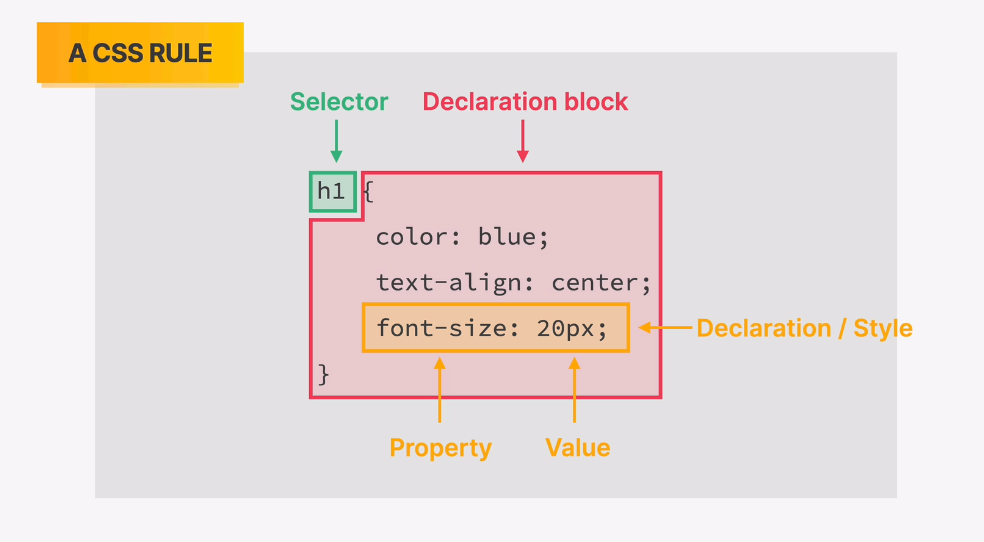
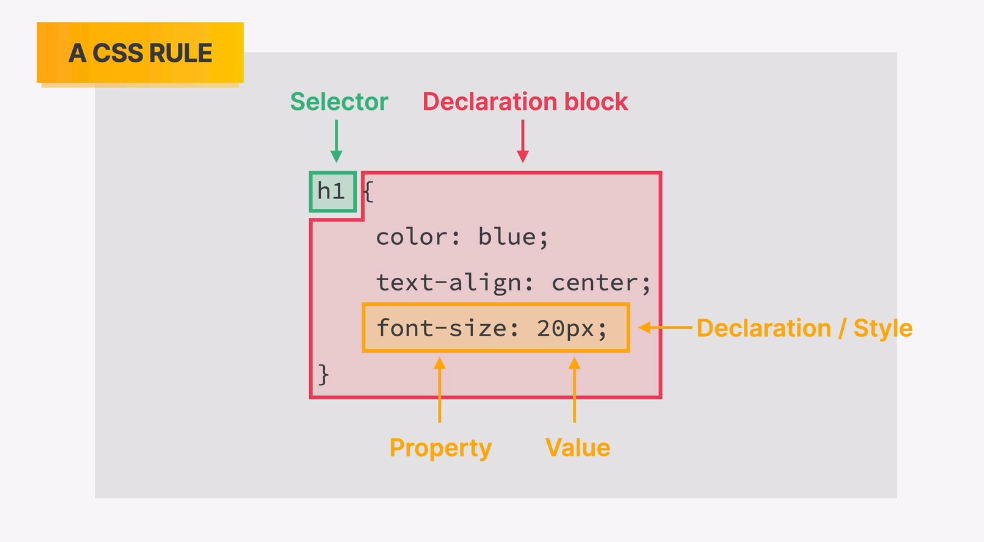
  • There will be many different CSS rules, one after another, where we select all the elements we want, and tell the program how we want to style them.

Posted in Web Developer Course | Tagged , | Leave a comment